Configuring Calendar Inputs
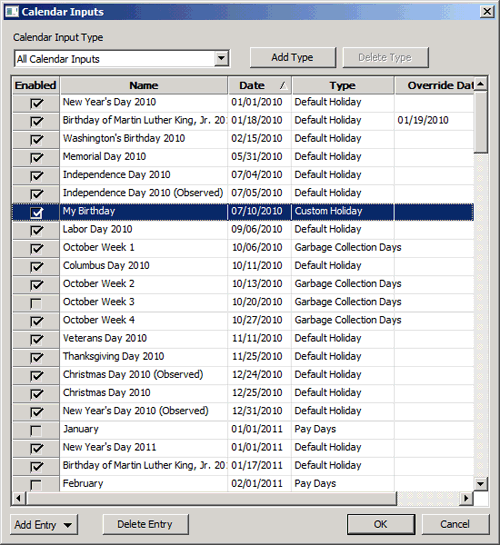
The Calendar Inputs dialog box shows the built-in and custom calendar input types defined for the system. Calendar inputs are a special type of input specification because the input is inherent in the timestamp of the input data entry, and thus the input type will be additionally processed for each input entry that is examined.
For each calendar input type the table lists defined calendar entries, with the following columns: Enabled, Name, Date, Type, and Override Date. Built-in Calendar Input Types include All Calendar Inputs and Default (US) Holidays.
Use the Calendar Input Type control to filter the Calendar Input Types displayed. You can sort by any column.
To Configure Calendar Inputs
- Click the Input Items page of the ELF Editor.
- Click Calendar Inputs to view the Calendar Inputs dialog box.
- Configure the inputs using the properties described below.
|
Calendar Inputs |
Configuring Calendar Input Type
- Click Add Type to add a new Calendar Input Type. Enter a Calendar Input Type and click OK.
- Click Delete Type to delete a Calendar Input Type.
Note: You can only delete custom calendar input types.
Configuring Default Holidays
You can disable or override the configured date for any Default Holiday. To assign a different date for a Default Holiday, double-click in the Override Date cell and enter a new date in MM/DD/YY format.
Note: Default U.S. national holidays go from 2006 - 2020.
Configuring Custom Calendar Entries
- Select the desired Calendar Input Type.
- Click Add Entry to add a new calendar entry of the selected type.
- Type the Name of the calendar entry.
- Type the Date of the calendar entry in MM/DD/YY format.
- Click Delete Entry to delete an existing calendar entry.
Note: Calendar entries can be disabled at any time, but will remain defined in the system. You cannot override the date for custom entries.


